GPS For Buses ETS2
Descriptions:
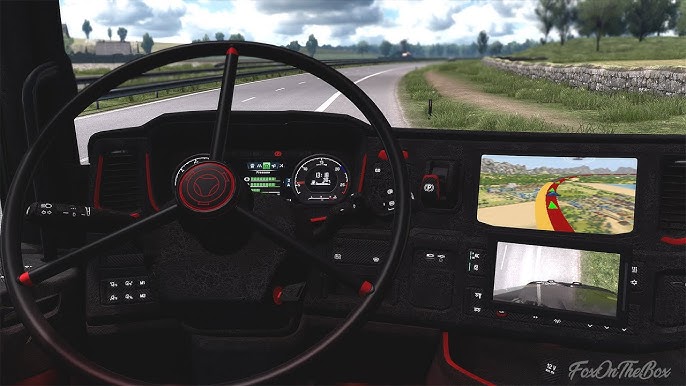
Having a good GPS is essential for a realistic and enjoyable experience in Euro Truck Simulator 2, especially when driving buses and navigating new routes. Here’s how GPS functionality works for buses in ETS2, including mods and general tips:
**1. In-Game GPS (Default Functionality)**
* **Dashboard GPS:** Most well-made bus mods, like the ones you mentioned (Marcopolo, Irizar, Modasa), will have a functional in-dash GPS screen. This is usually the most immersive way to navigate.
* **Route Advisor (F3 Menu):** ETS2 has a “Route Advisor” overlay (accessed by pressing F3 by default) that displays GPS information, speed limits, job details, and other useful data. You can cycle through different views of the Route Advisor to focus on the map, job details, or simply turn it off for a more immersive experience.
* **World Map (M key):** You can always open the full world map (M key) to plan your route, set waypoints, and see the overall road network.
**2. Enhancing GPS with Mods**
While the default GPS works, many players opt for mods to enhance the visual appeal, functionality, or realism of their GPS system.
* **Dedicated GPS Device Mods:**
* **GPS Tablet Mods:** These mods add physical GPS tablets (like a standalone Garmin or a modern tablet with a mapping app) to your dashboard as a cabin accessory. They often come with various screen designs (e.g., Google Maps style, custom UI).
* **Example:** A recent mod found is “[REL] GPS For Buses” by burubin (available on Steam Workshop), which specifically adds a GPS tablet compatible with Norman Mods buses.
* **Windshield-mounted GPS:** Similar to tablet mods, but designed to sit on your windshield. These are usually part of larger “cabin accessories” packs.
* **GPS Skin/UI Mods:** These mods change the appearance of the in-game GPS (both dashboard and Route Advisor) to make it look like popular real-world GPS interfaces (e.g., Google Maps, Waze, or different color schemes).
* **Real GPS Voices:** Mods that replace the default navigation voice with more realistic or custom voices.
* **No GPS Player Icon / Hide Player Position:** For a more hardcore and immersive experience, some mods remove the player’s icon from the map or even hide undiscovered roads, forcing you to rely more on road signs and memory. (e.g., “[REL] No GPS player icon / Hide player position” on the SCS Software forum).
**3. Compatibility with Bus Mods**
* **Integrated GPS:** If a bus mod (like a high-quality Marcopolo G7 by Fábio Contier or an Irizar Century by JH3D) has its own custom interior, it will usually have its GPS screen already integrated into the dashboard. These are generally well-optimized for that specific bus.
* **Cabin Accessories DLC:** The official “Cabin Accessories” DLC from SCS Software provides various items, including small GPS units that you can place on your dashboard. These work with any truck or bus that supports cabin accessories.
* **Mod-Specific GPS Addons:** Some bus modders might release separate “GPS addons” for their buses, or include specific GPS options within the bus mod itself. Always check the mod description for compatibility and recommended accessories.
* **General GPS Mods:** Many GPS overlay or skin mods are universal and will work with any truck or bus, as they simply modify the existing UI elements of the game.
**4. Tips for Using GPS with Buses in ETS2:**
* **Plan Your Route:** Even with GPS, especially on passenger routes with multiple stops, it’s good practice to glance at the full map (M key) beforehand to get an overview of your journey.
* **Adjust GPS View:** Use the F3 key to cycle through the Route Advisor views. You can hide it completely if you prefer to rely solely on the in-dash GPS for immersion.
* **Keybinds:** Familiarize yourself with keybinds related to the GPS and Route Advisor in your game settings (e.g., for toggling views, zooming, or changing the dashboard GPS mode).
* **Mod Order:** If you’re using multiple mods, especially those that affect the UI or interior, pay attention to their load order in the Mod Manager to avoid conflicts. Generally, put specific bus mods higher (more priority) than universal GPS UI mods.
* **Passenger Mods:** If you’re doing passenger jobs (which require a separate passenger mod or a bus mod that includes passenger functionality), the GPS will guide you to each bus stop. The Trucky app also has a “Public Transport” feature that can help with route management and stops.
In summary, you’ll have basic GPS functionality with any bus mod. For a more tailored experience, look for dedicated GPS tablet mods or UI skin mods that fit your preferences and are compatible with the bus mods you enjoy.
Authors:
JACSON
Download Link: Download mod
* By clicking [Download mod] button you agree to leave this website. The link opens in the new tab. File is hosted in the external website. We are not responsible for the content of the external page and the possibility of free download of the file.